Yes, they were a bedrock metric that you based your KPIs on but they are no longer.
In UA (GA3) Google told us “unique pageview, as seen in the Content Overview report, aggregates pageviews that are generated by the same user during the same session. A unique pageview represents the number of sessions during which that page was viewed one or more times.”
In GA4 Google tells us simply there is no GA4 equivalent of the GA3 (UA) Unique Pageview, helpfully putting a ‘N/A’ in the GA4 column of the UA to GA4 mapping table, without so much as a by your leave.
So what metric do you use to see which pages get the most individuals looking at them?
Well looks like there is a ‘Users’ figure against pages which Google explains is “The number of distinct users who visited your website or app.”
I’ve found this new GA4 ‘users’ metric to show a significantly lower figure than the old UA ‘unique pageviews’ (UPV) figure, which may be because the latter was counting every user session where the page was viewed rather than just the unique users behind those sessions.
Who knows?
You can go to the Explore section on the left hand side of the GA4 menu and hand craft your own report of ‘sessions’ against pages but I found that yielded a figure similar to ‘users’ and markedly lower than the UPV figure I’d recorded for previous months.
Some will tell you there is a way to get those old UPV figures by combining user and session data using BigQuery. Easy huh?!
Erm, no. It’s gotten hard to get a UPV figure. But is that because Google wants you to spend time and money doing your own analysis of the data about your website they go to considerable lengths to collect and present? Or because it’s a dated concept they’d rather you didn’t use anymore?
My simple take is that at the end of the day, Google captures certain information during website page (and now app screen too) interactions and tries to present this to us in digestible, useable and familiar terms – so, for example, a user isn’t really a user in the sense of an individual person, it’s some recorded activity of pages being visited by a browser, storing a cookie on the device hosting it, within a certain amount of time since the last visiting of pages by that same browser.
Now as Google gets better at identifying real life actual users (e.g. through verified sign-ins to your own site, or even Google accounts) you may see an apparent decrease in users of your website, when in reality you are just seeing the consequence of Google Analytics more accurately counting users.
This is the quandary of data quality. Improving our data quality may mean we look like we’re doing worse in terms of the amount of data we’re collecting. So why try harder to improve data quality? I mean never mind the quality, feel the width. Unless that quality can ultimately lead you to better decisions..
Well, musings aside, I’m going with dropping UPV from my metrics in favour of the easier to report on users figure for now – but if you have a better understanding leave a comment and enlighten us all!
Excel function to generate a numeric unique ID (UID) for a person’s name.
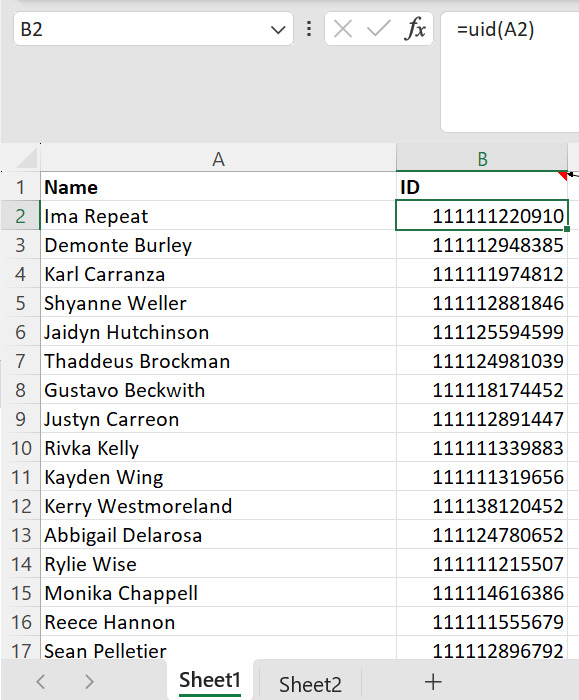
This simple Excel function magically generates a numeric unique identifier (UID) for each name in a data set.
It’s not just creating a random number for each name because the same name generates the same number each time.
And it’s not just assigning each name one of a handful of numbers because there are as many different numbers as there are names – as proven by the counts in D1 and E1 of the worksheet below.
Checking UIDs are in fact unique for your data set.
But where’s the documentation for this magic Excel “uid” function? And why would we even need it? Well let’s get into it.
Sometimes we need to store or present data about people without revealing any of their personally identifiable information (PII) like name, date of birth (DoB), address, email address, phone number, etc. but at the same time presenting a consistent and true picture of each person’s data. For example person 1 is a 6 foot 35 year old male from London and person 2 a 5 foot 82 year old woman from Edinburgh. This is commonly referred to as pseudonymous data, rather than anonymous data.
Pseudonymous data is data that has been de-identified from the data’s subject but can be re-identified as needed. Anonymous data is data that has been changed so that reidentification of the individual is impossible. Pseudonymisation is the process of replacing identifying information with codes, which can be linked back to the original person with extra information, whereas anonymisation is the irreversible process of rendering personal data non-personal, and not subject to the GDPR.
So we could create a simple mapping table with a number assigned to each individual person but that requires:
creating and then storing the mapping
ensuring we map just the unique individuals in our data so we have just one number per individual
maintaining and adding to the table every time a new person is added.
All rather cumbersome and time consuming.
What we could really do with is some function that magically converts their full name (or full name plus whatever other piece of data we hold about them, like DoB, to uniquely identify an individual) to a unique identifier – ideally numeric, which is easy to store and look up.
So here’s an Excel user-defined function that creates a reasonably unique numeric id or more accurately hash for a person’s full name.
I say reasonably because it’s not perfect and collisions are possible, by which I mean two different names could result in the same numeric ID being generated.
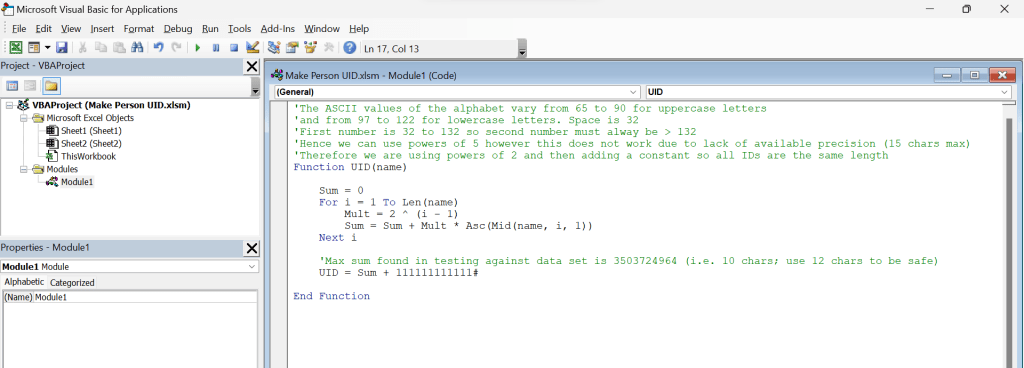
You create it using VBA (the programming language that comes as standard with Excel) and can then use the function in a cell just like any other built in Excel function. It can look as simple as this:
Excel UID user-defined function.
This function encodes each character of the name, together with the position of that character in the string. Each position would ideally generate numbers of a different scale so when added up they won’t interfere with the numbers from other character positions.
So to try to visualise this, if we used a 2-digit number (e.g. A=65) to represent each letter of the name then we could have the number for the name’s first letter occupy the units and tens columns of our UID, multiply the number for the name’s second letter by a hundred so it occupies the hundreds and thousands columns of the UID, multiply the number for the third letter by ten thousand and so on.
This idea is not novel e.g. an algorithm like this is considered here: Stackoverflow.com
The problem with this is that in Excel we can only record 15 digits of precision in a number so quickly run out of numbers meaning we can only record names up to 7 letters long.
By 15 digits of precision I mean that, if you have a number over 15 digits long not all of its digits are actually stored. For example, after 1 quadrillion (1,000,000,000,000,000) you lose the ability to store units so 1,000,000,000,000,001 is actually treated and stored in Excel exactly the same as 1,000,000,000,000,002 which increases the chance of collisions. You can see this for yourself by typing each of these numbers in different cells and entering a formula to subtract one from the other. You will see a difference of 0. Yes, Excel can lie to you!
To address this we use a smaller multiplier so we can encode a longer sequence of letters within the 1 quadrillion limit, however it is then possible for a character at one position to be encoded as exactly the same number as a character in a different position so there isn’t in fact a different total for every single permutation of letters one could encode, although the chance of two names in one’s actual dataset sharing the same total is low.
For example _A (a space followed by A) generates 32 + 2*65 = 162 but so does b_ (b followed by a space).
Now this UID function could in fact be used with any string but there is a limit to the length of the string before collisions become more likely and it is designed for text up to around 30 characters i.e. the typical maximum length of a person’s full name (first name and surname).
You could experiment with increasing the character position multiplier to reduce or eliminate the chance of collisions but that results in the generated ID number requiring more than 15 digits of precision more quickly as names get longer, which then increases the possibility of collisions so it’s swings and roundabouts.
Clearly there is a trade off between the length of string you can generate a UID for and the risk of collisions.
With real person names and datasets in the low hundreds of names I’ve found in its stock form it does a pretty good job of coming up with a different ID for every different name, though there is lots of room for further optimisation – possibly at the expense of more complicated code.
For example, you could imagine simply using an if else clause to assign a different number for every single real world known name. There are apparently around 30,000,000 different surnames and around 30,000,000 firstnames and hence 30,000,000 squared (9e+14) combos of first and last name – so with 15 digits we could perfectly encode every single one of those combos. The code for such a function would however be horrendous!
If you don’t need a purely numeric identifier then generating an alphanumeric identifier (i.e. including letters as well as numbers) would of course allow even more numerous representations within a given code length, however, again at the expense of more complicated code.
If you come up with a more efficient code generator that deals with longer names or reduces collisions please do leave a comment.
With this simple, and hence quick to run, function, although a unique ID is not guaranteed for each different name, you can easily and quickly test whether the function does in fact create unique IDs for your specific data set by running it for each person it contains (simply fill the function down as shown in the first screenshot above) and seeing whether you get the same number of unique IDs as you have unique individuals.
Just do an advanced filter on unique records for firstly the names of the individuals and then the generated IDs of those individuals and check whether there is the same number of rows of each – or alternatively use the Excel COUNTA and UNIQUE functions in combination as shown above (note that we use COUNTA rather than COUNT since COUNT only works with cells containing numbers and dates but not text).
If it doesn’t then you should be able to tweak the function’s code slightly so it does generate a unique ID for each name in your particular data set.
Now, considering your original data set, if your person full names, by themselves, don’t uniquely identify individuals you can concatenate to their name another piece of information about them, for example their DoB, and then run the function against that concatenated string.
Finally you can add a constant of your choosing to the number generated by the function to make all the IDs a consistent length and further obfuscate the relationship between name and ID.
Note: In VBA if we declare a variable without specifying the data type then the Variant data type is assigned by default (which requires more memory resources than most other variables). Types also have a shorthand and # is the shorthand for double. For more details see Data Type Summary.
You can change the function to make it easier to find individuals through their pseudonymised ID e.g. adding their initials before the generated number to make it easier to find a specific individual across various data sets. As a bonus, this also increases the uniqueness of the generated ID though of course the addition of alpha characters means that a numeric field can no longer be used to store the ID.
Just remember that if you change the function you then need to manually recalculate any cells that have already used your user defined function, by pressing ctrl-alt-f9 to force a workbook-wide recalculation. Pressing f9 alone is not enough, since that only recalculates cells marked as ‘dirty’ i.e. which refer to cells whose value has changed since the last calculation.
So, there you go. An approach to creating a simple Excel function that generates a unique number for every person name in your dataset.
Enjoy – and for more tech and wellbeing at the lowest price please subscribe 🙏


 GI Chow