If you’ve been eagerly anticipating the third movie in Danny Boyle’s “28” zombie horror series, you may have scoured several sources for clues and snippets.
If you look, it’s surprising how much information there is out there, from interviews with actors and snatched photos of them on set to official press releases, trailers and articles in online publications.
To help satisfy my curiosity, I fed some of these sources into AIs like Google NotebookLM and ChatGPT custom video creators to produce both a 20 minute pure audio podcast and 4 minute video podcast with relatable visuals. You can check out the video above with the longer 20 minute audio podcast available as a .wav audio file here:
There are several topical, political and satirical comedy TV and Radio programmes that need a constant supply of topical jokes like “Have I Got News For You”, BBC Scotland’s “Breaking the News” and “Noising Up” but have you ever thought about writing for them?
I’ve submitted well over a hundred topical gags which you can check out in another post
but check out this short video describing a system for writing jokes.
How to write topical jokes
In a nutshell, the video proposes a 4-step process: Choose fresh news, find the funny, keep it punchy, publish to social media and engage with the responses.
I found the process of making the video as interesting as the content of the video itself and did this using what is termed a ‘custom’ ChatGPT that, with a simple prompt, creates an entire video on any topic of your choice – in minutes!
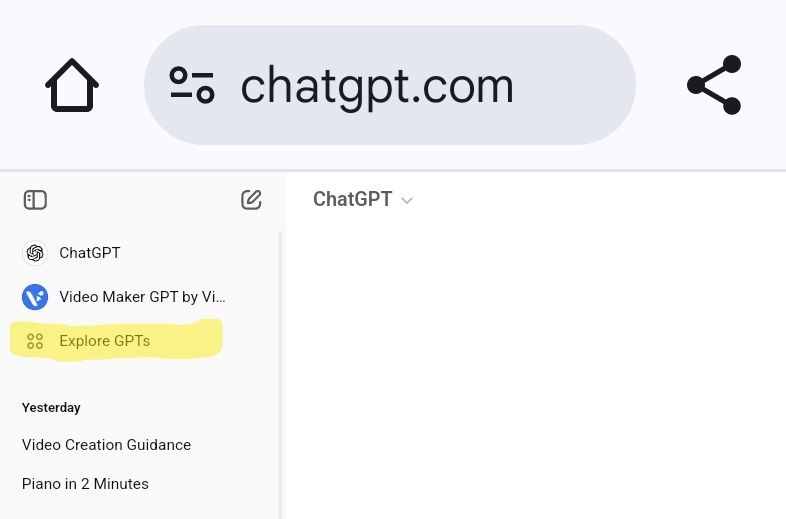
To create your own videos, log in to ChatGPT with your browser, click “Explore GPTs” near the top left hand side and search for ‘video’.
This will return several AI video makers such as Video GPT, Video Maker and Video Maker GPT. Use one of these and enter a prompt describing the tone, length, audience and subject of the video like:
“Create a fun 1 minute educational tutorial video for comedy writers on Twitter describing how to create topical news jokes”
This prompt, with Video Maker GPT, creates a pretty useable video with script, narration, background music, subtitles and stock video in under a minute. Incredible huh?!
Follow me @gichowdotcom on Twitter/X and search my posts for the hashtags #BTNrejects and #NoisingUp for more topical comedy!
I didn’t think it was possible to use the Shazam app on my phone to Shazam music that was playing on the same phone however it turns out you can do this, for example to Shazam music playing in an app or post on Instagram, TikTok, Twitter/X, etc.
To do this, you need to change the Shazam app’s settings as shown in the steps and screenshots below:
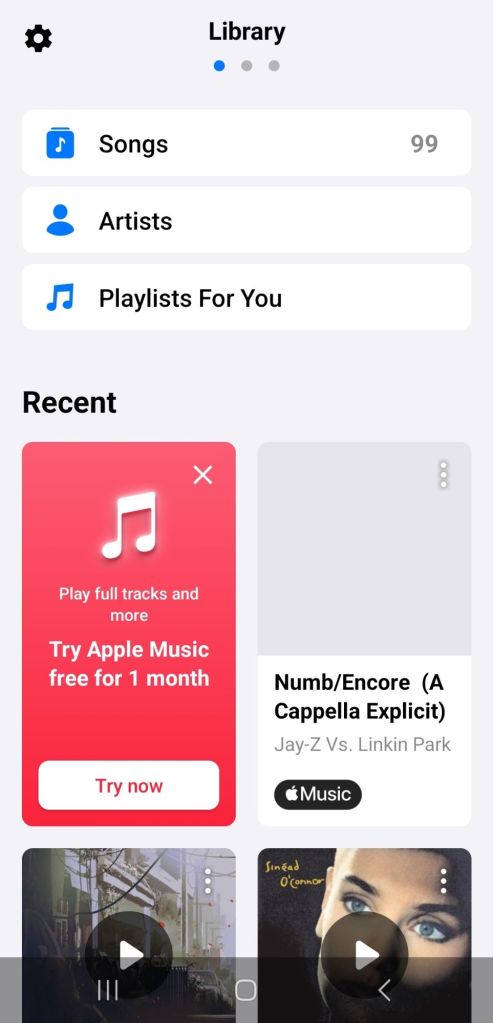
Open Shazam and swipe right (drag your finger left to right) so you see the cog symbol top left
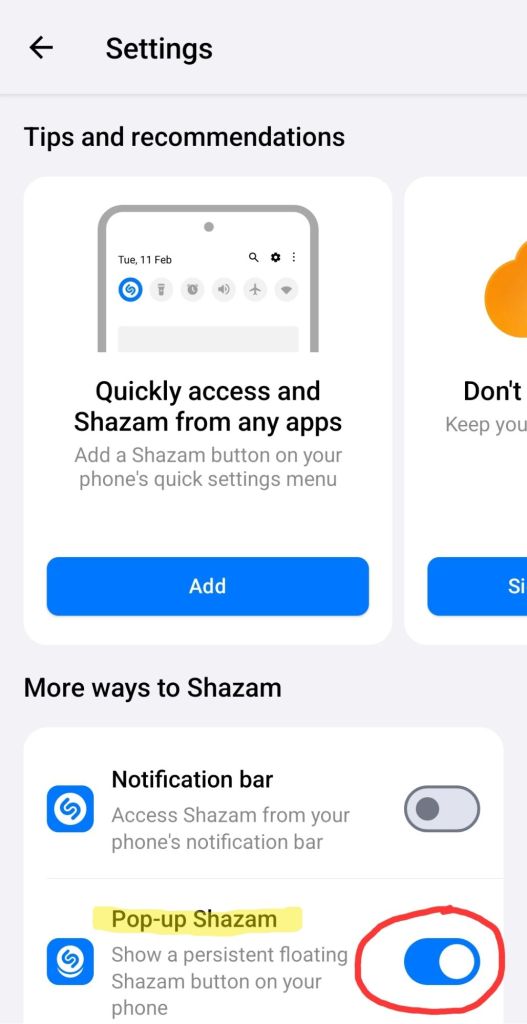
Click the cog, scroll down to “Pop-up Shazam” and slide the toggle right to turn it on
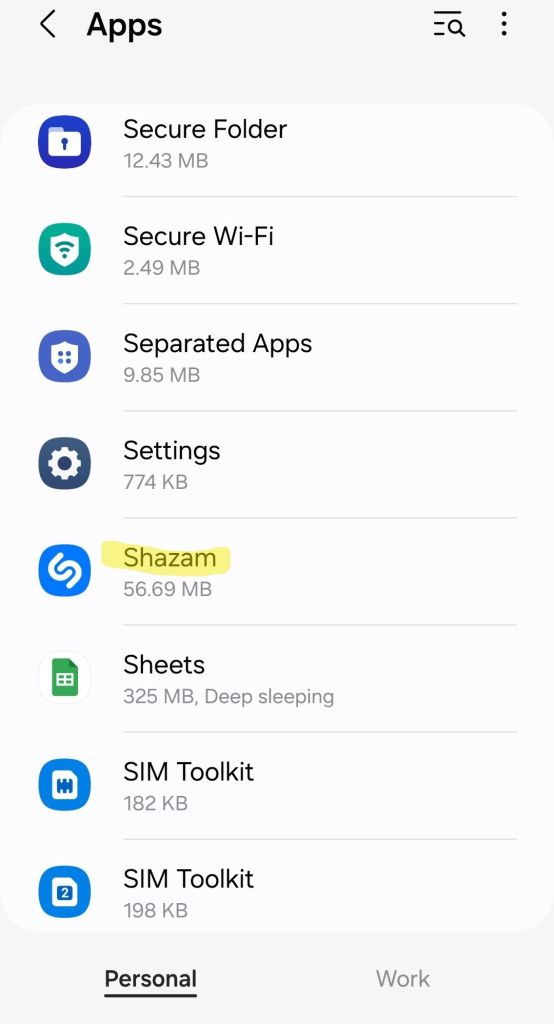
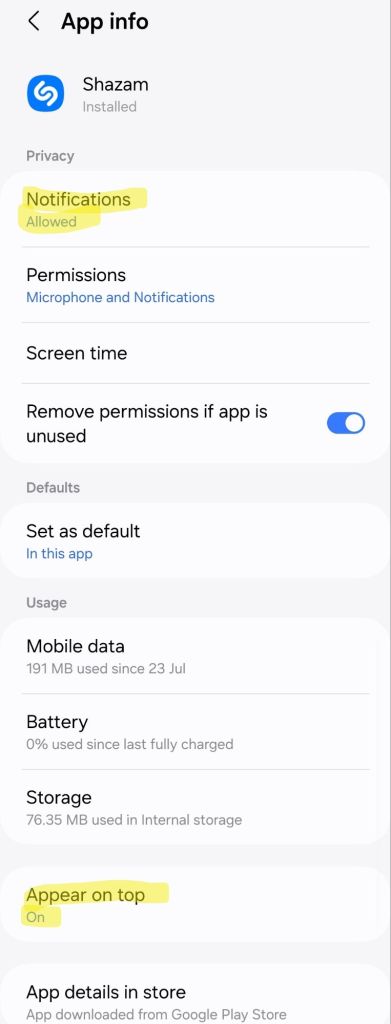
Change your phone’s Shazam app permissions to allow the permissions Shazam needs: “Notifications” and “Appear on top”.
Shazam settings changes to Shazam music playing on your phonePhone permissions changes to Shazam music playing on your phone
That’s it, you’re done!
To shazam something playing on your phone:
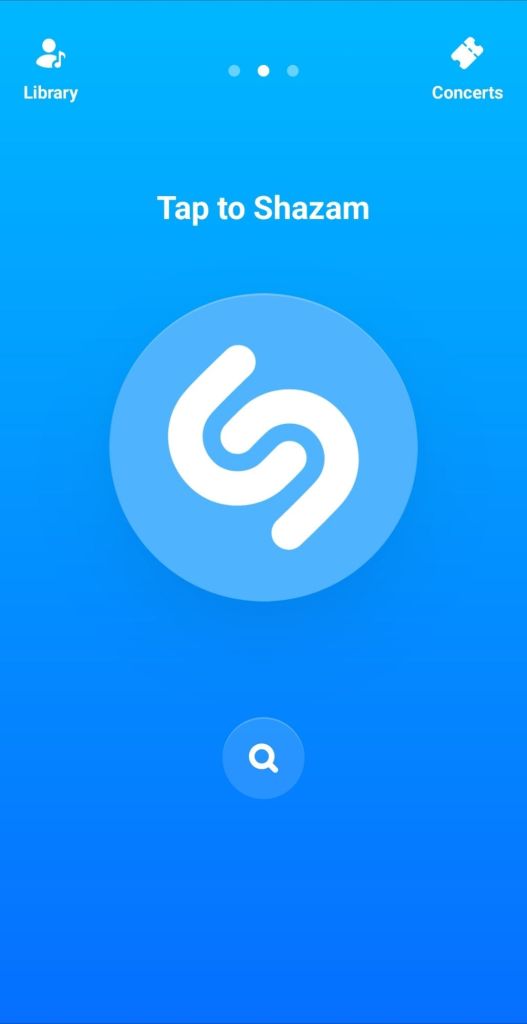
Open Shazam as normal
Press the button to Shazam (if you’ve previously changed your Shazam settings to “Shazam on app start” no need to do this step)
Switch to the app (Twitter (X), Instagram, TikTok, etc.) where the music was and play it.
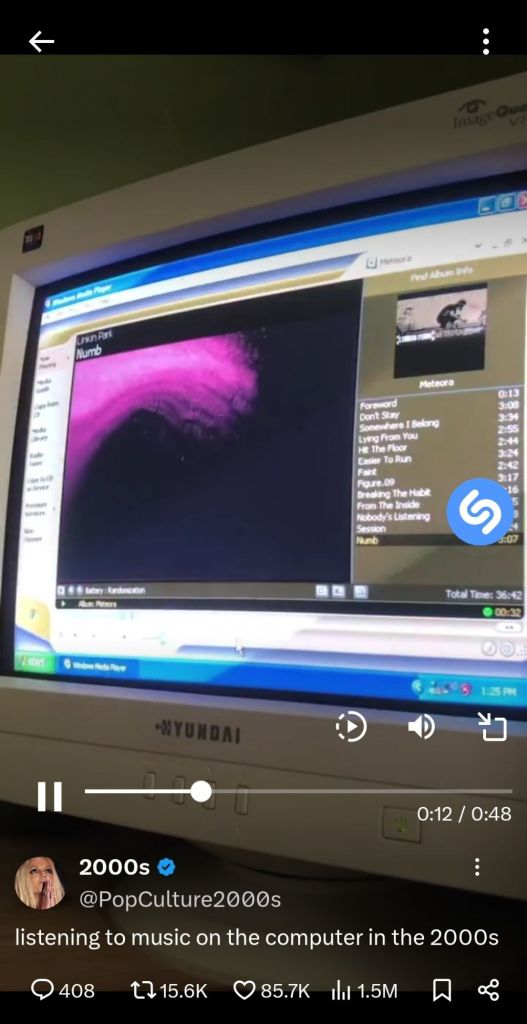
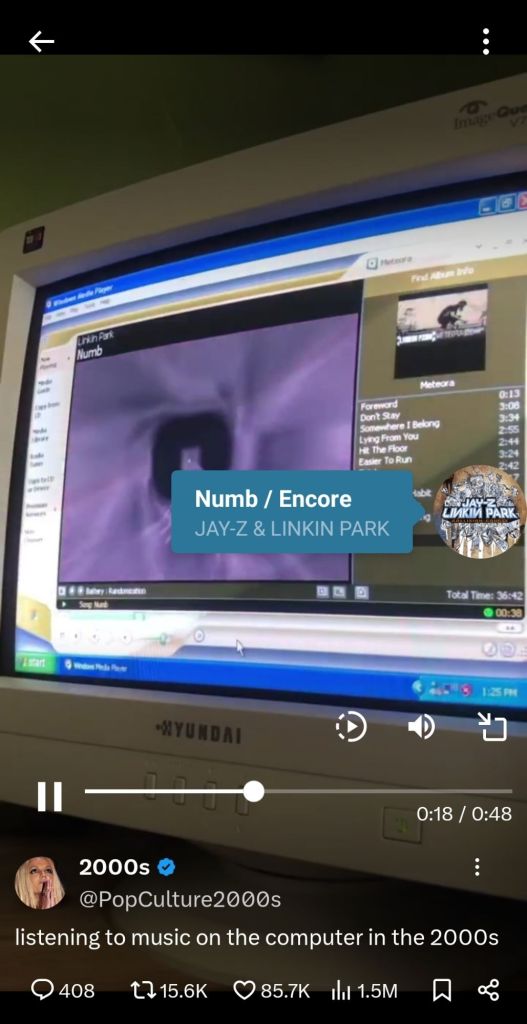
A blue Shazam button will appear ‘listening’ (pulsing) and eventually show the track – you may need to start Shazam again, go back to your app where the music is playing, and then press the overlaid Shazam button again if it doesn’t work the first time.
Shazam music from a Twitter post
Hope this helps – and if you got value please consider subscribing to my YouTube channel 🙏
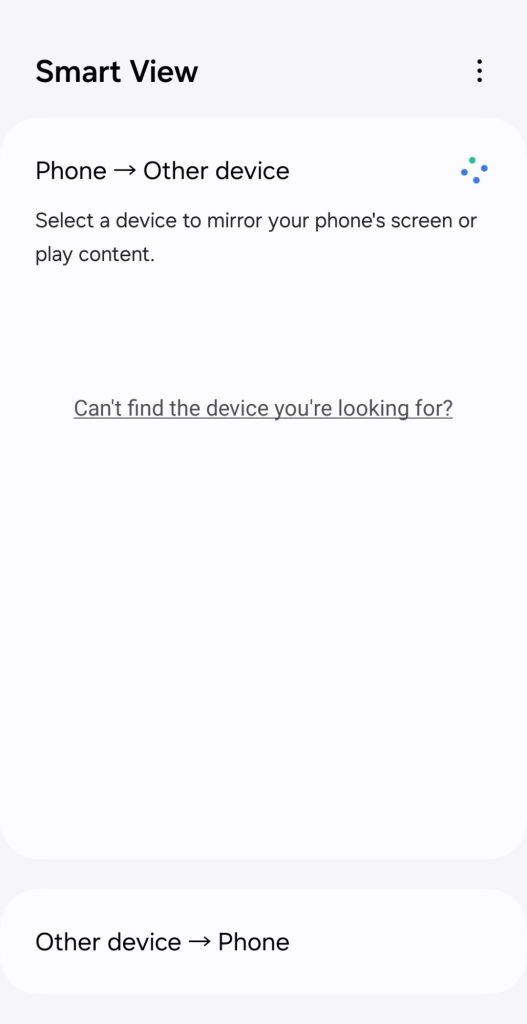
Can you not mirror your Samsung phone’s screen to your Sony Bravia TV because it doesn’t appear on the list of devices – even if it used to?
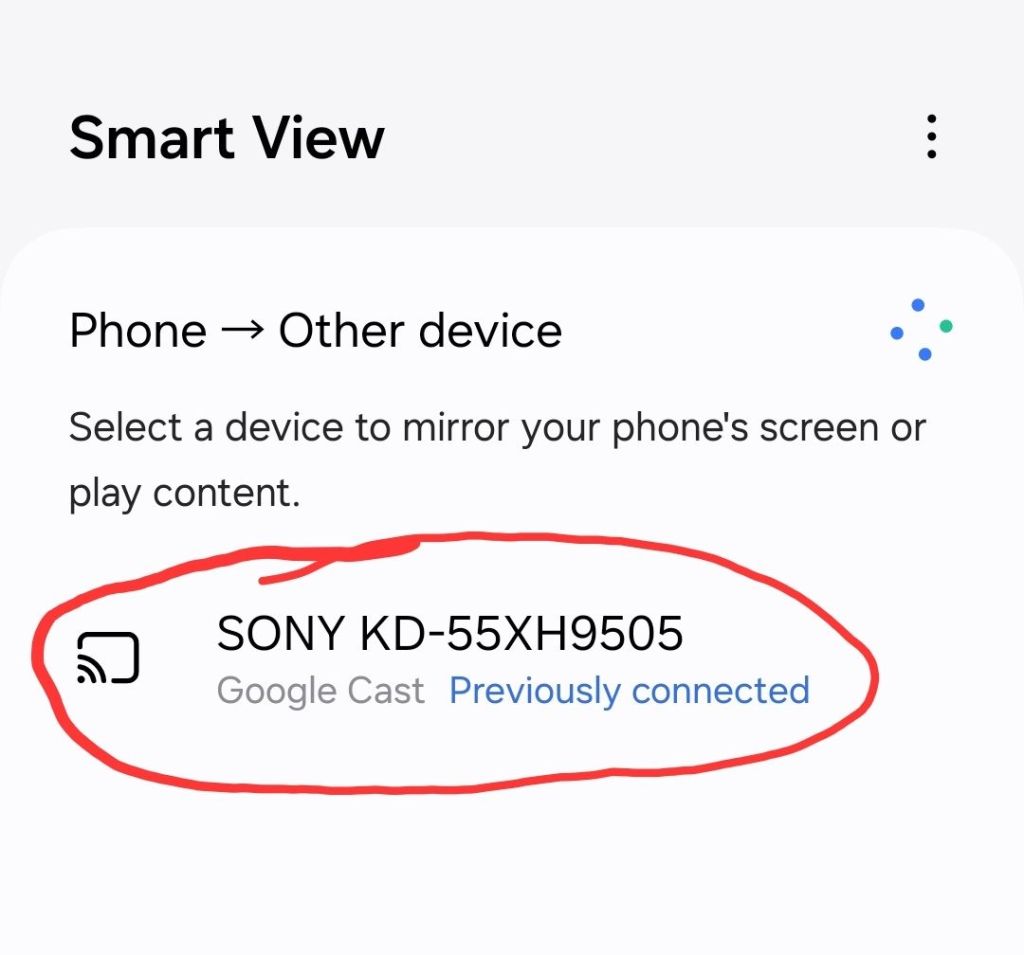
Sony Bravia TV not in Samsung Smart View list
You’ve clicked “Can’t find the device you’re looking for?” and followed the instructions but your Sony Bravia TV doesn’t appear in the list of devices even after restarting both your TV and phone and ensuring both devices are on the same WiFi network.
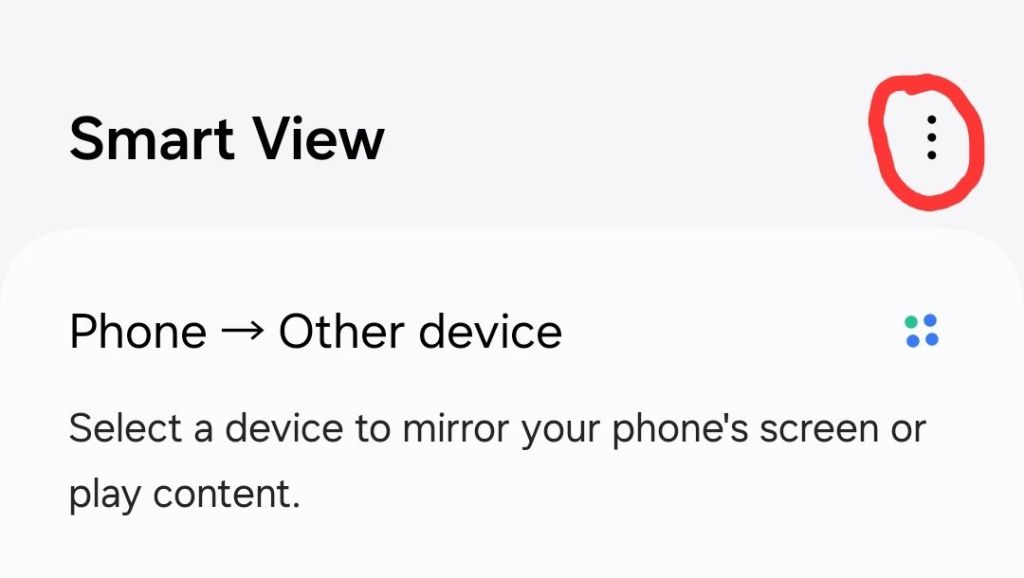
Well, here’s a quick fix that worked for me! Just click the 3 dots top right:
Three dots
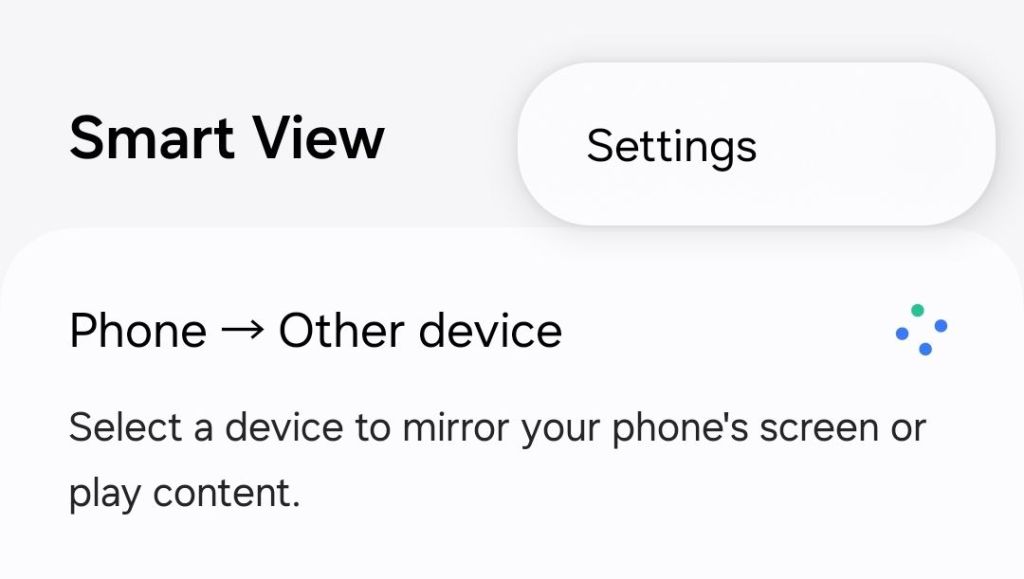
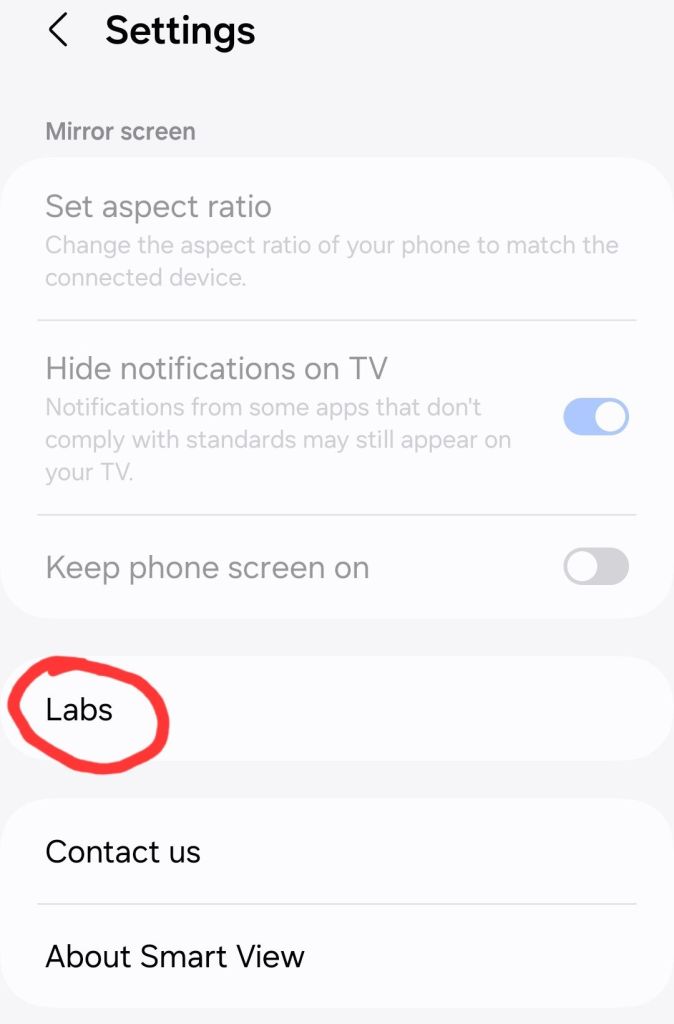
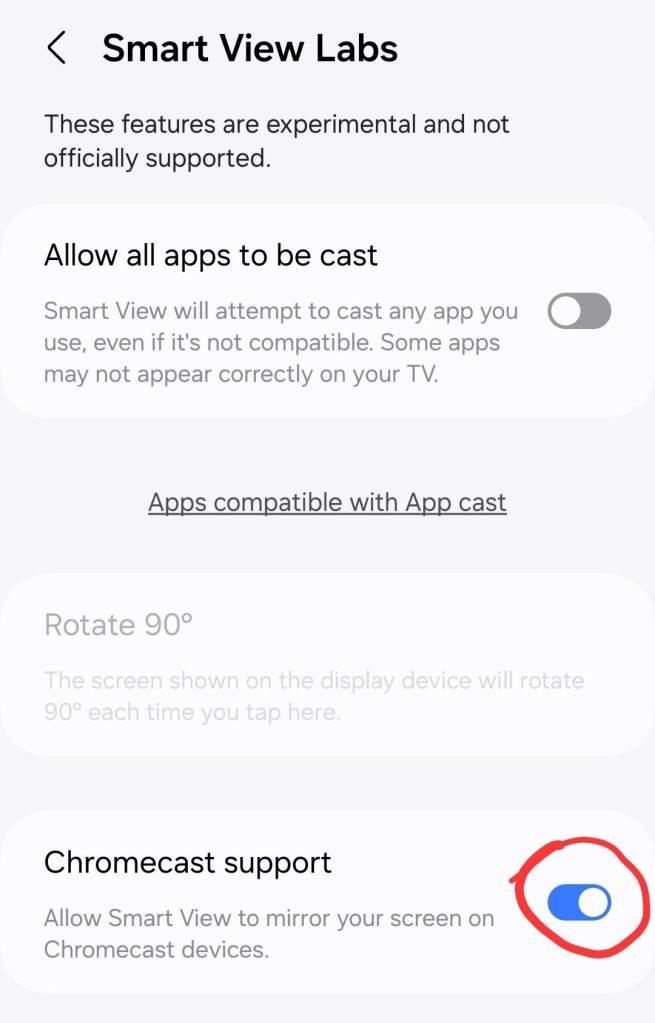
And then Settings > Labs > Chromecast support:
Turn Chromecast support on (slide the button right) and voila! Go back and your Sony Bravia TV will appear in the list for streaming your screen, photos and videos too.
Printing multiple copies of multiple page documents double-sided on a printer that can only print on one side of paper at a time requires printing the same sheet of paper twice.
So how does one do it as simply as possible? Without having to manually reorder printed pages or press print multiple times or accidentally miss pages or collate pages in your copies in the wrong order!
Let’s start with the simpler case of a document with an even number of pages, for example, a six-page document that is desired to be printed double-sided on three sheets of paper.
(1) In the print dialogue, tick odd pages only. In the Adobe Acrobat print dialogue there is an option to print just the odd (or just the even) pages but if you are missing this option you can manually enter the pages to print as 1, 3, 5, etc. Enter the number of copies of the document you want e.g. 3. Typically, the collate option will be automatically checked – this is what you want and just means that the pages will be printed as normal in order, rather than 3 copies of page 1 followed by 3 copies of page 2, etc. Ensure that the ‘Reverse order’ checkbox is not ticked; sometimes it is ticked by default in which case untick it.
(2) Print your document with these options and you will get e.g. 3 copies of your document but with just the odd pages printed. So, for our six-page document example, we will have 9 sheets of paper printed on one side with pages 1,3,5,1,3,5,1,3,5 in that order in the output tray.
(3) Put the pages you just printed from the output tray back into the paper source tray with the blank side facing up* and the top of the page innermost (so the last page of the document is the first page fed).
(4) In the print dialogue, select both the even pages checkbox and the ‘Reverse order‘ checkbox. Again, Adobe Acrobat has option checkboxes to achieve this but if you are missing these options you can manually enter the pages to print as e.g. 6, 4, 2. Enter the number of copies of the document you want as before e.g. 3. Again, typically, the collate option will be automatically checked which is what you want.
(5) Print your document with these options and that’s it! You will get, say, 3 copies of your document printed double-sided with each copy’s pages in the correct order in your output tray.
If you have an odd number of pages in your document then:
1) before step (3) above, remove the very last sheet of paper from each of the copies in your stack of copies. So, for example, if you are making 3 copies of a 5-page document, you will have 9 sheets after step (2) with page numbers: 1,3,5,1,3,5,1,3,5. In this case, remove all the last sheets of paper from each copy so you have just page numbers: 1,3,1,3,1,3.
2) after step (5) above, add back in the sheet you took away to each copy, so in the previous example you will have 9 sheets of paper: pages 1/2 on the first sheet, pages 3/4 on the second sheet, page 5 on the third sheet, page 1/2 on the fourth sheet and so on up to page 5 on the ninth sheet.
*It is worth performing a test of the whole process with just a single copy of your document to make sure you know how to feed the sheets of paper into your printer in the correct orientation, so that you don’t print on the same side of paper twice. If your printer behaves differently to mine (Samsung ML-1665), where the top side of the topmost sheet in the bottom paper feed tray is printed on and this ends up face down in the top output tray (so the last page printed is topmost in the output tray), you may have to revise the process slightly but the basic principle should still apply.
If you’re curious about how fast the fastest Dobble players play or who the fastest Dobble player is take a look at these!
Playing Dobble
I’m consistently slower at recognising the matching symbol than the winner in this game.
Sometimes, I’m very close and see a match just fractionally before an opponent but a miss is as good as a mile!
I wonder what makes some people faster than others? Is there a strategy they are using – like finding matching colours? Do you know a faster player? Is there a Dobble record holder? Some play their hand with cards that are already face up – is that the ‘legal’ method?
If you know the answer to any of these questions or have other questions about this simple but fun game leave a comment against the video above – perhaps someone will have an answer!
This article is now available as a short 50 second video so you can simply start there and watch the steps more clearly instead of reading this!
If you’re seeing the email notification icon constantly at the top of your phone, it can be quite distracting since it seems like one has emails even when one doesn’t.
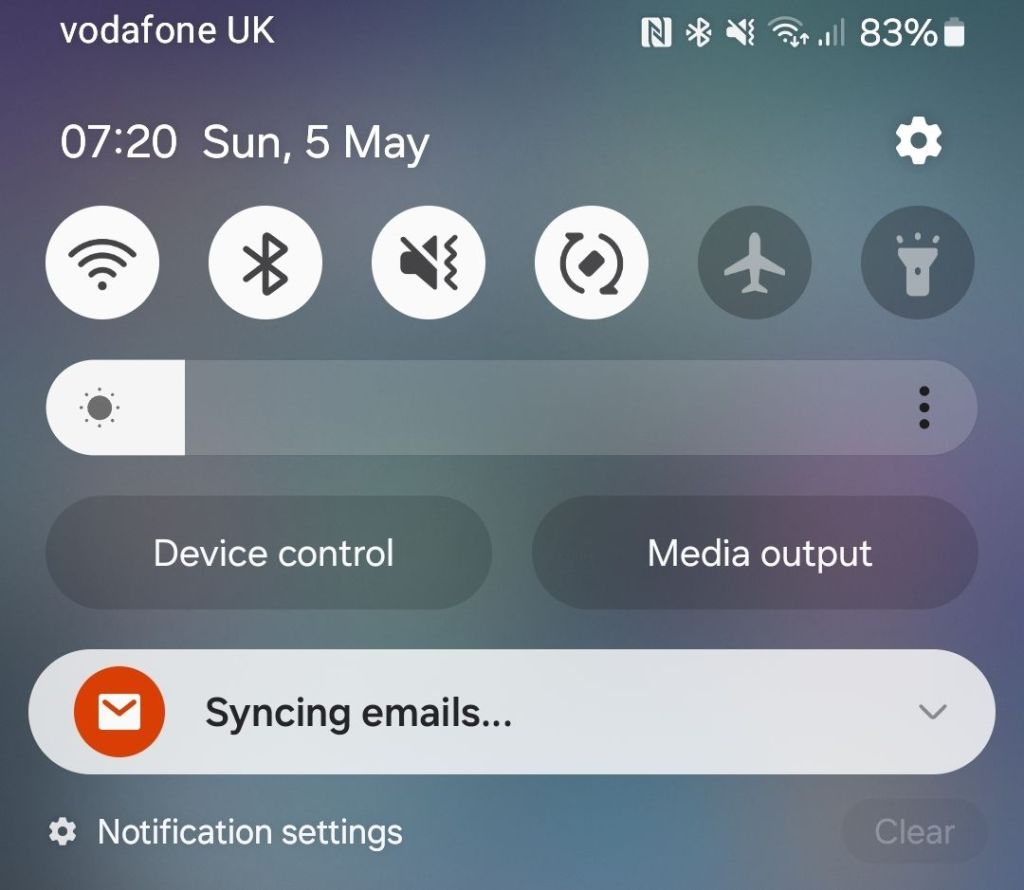
Samsung Email notification icon
I got this notification on my Samsung S21FE phone this morning, 5th May 2024, and swiping down one can see that the reason for it is “syncing emails” rather than a new email having arrived but how does one fix this? Googling, there is a Samsung Community forum thread with some feedback on the issue however you need to be signed in with a Samsung account to reply.
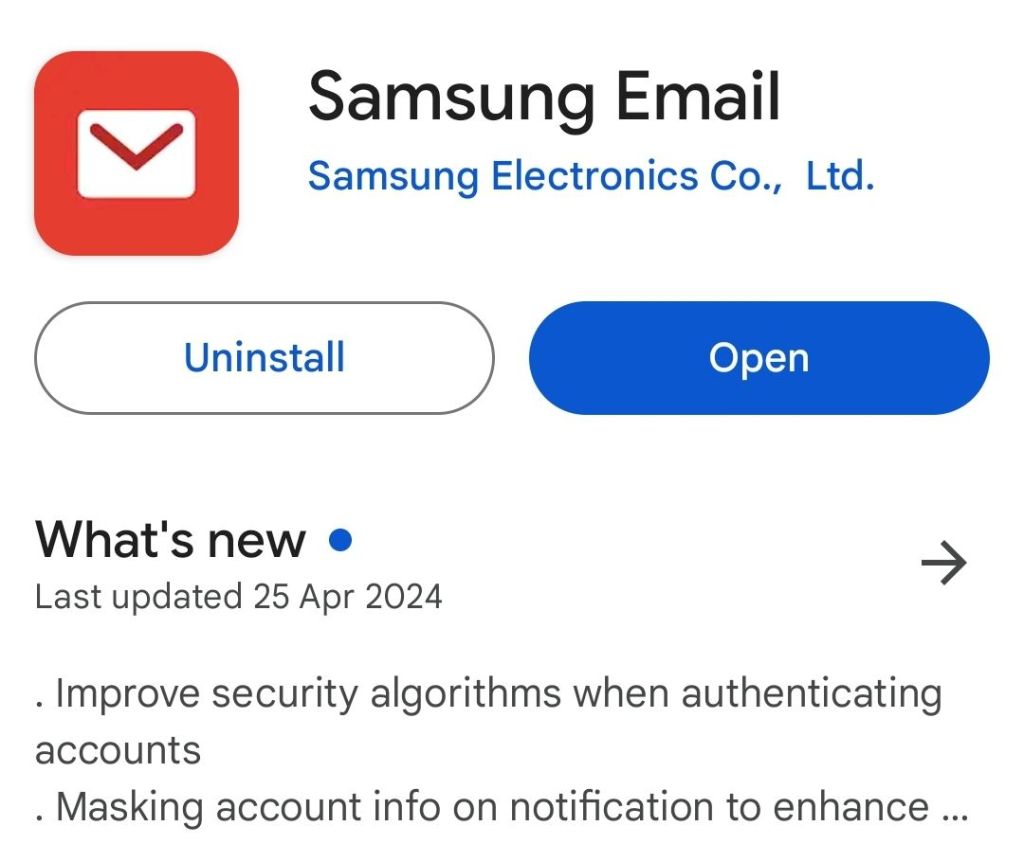
One of the posts says reinstalling fixes the issue but going through the hassle of reinstalling the “Samsung Email” app (white envelope on red background) and adding in all one’s email accounts and sync schedules made no difference whatsoever.
Samsung Email app
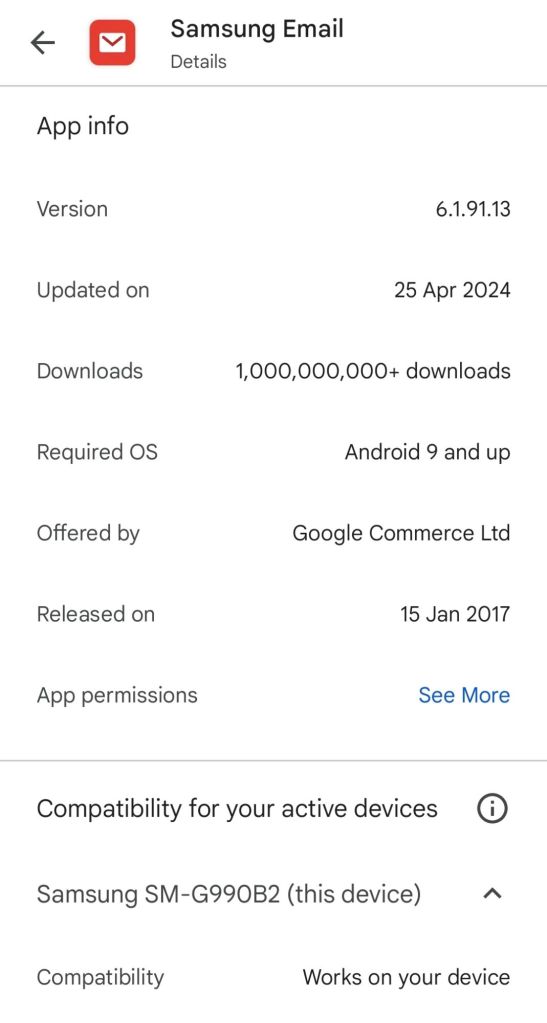
I now have the latest version installed (6.1.91.13 from 25th April 2024) but the problem remains.
Samsung Email version shown in Play Store
So… Samsung please look at this. Or if you have a fix please leave a comment below – which doesn’t require any sign in.
Update 5/5/2024: I swiped right on the “Syncing emails…” notification and it has disappeared – let’s hope for good! 🤞
Whether one had to first manually uninstall and reinstall the app for that swipe notification removal to work I don’t know so give it a go to begin with – and leave a comment here or against the YouTube video (which has several already) if you have the answer.
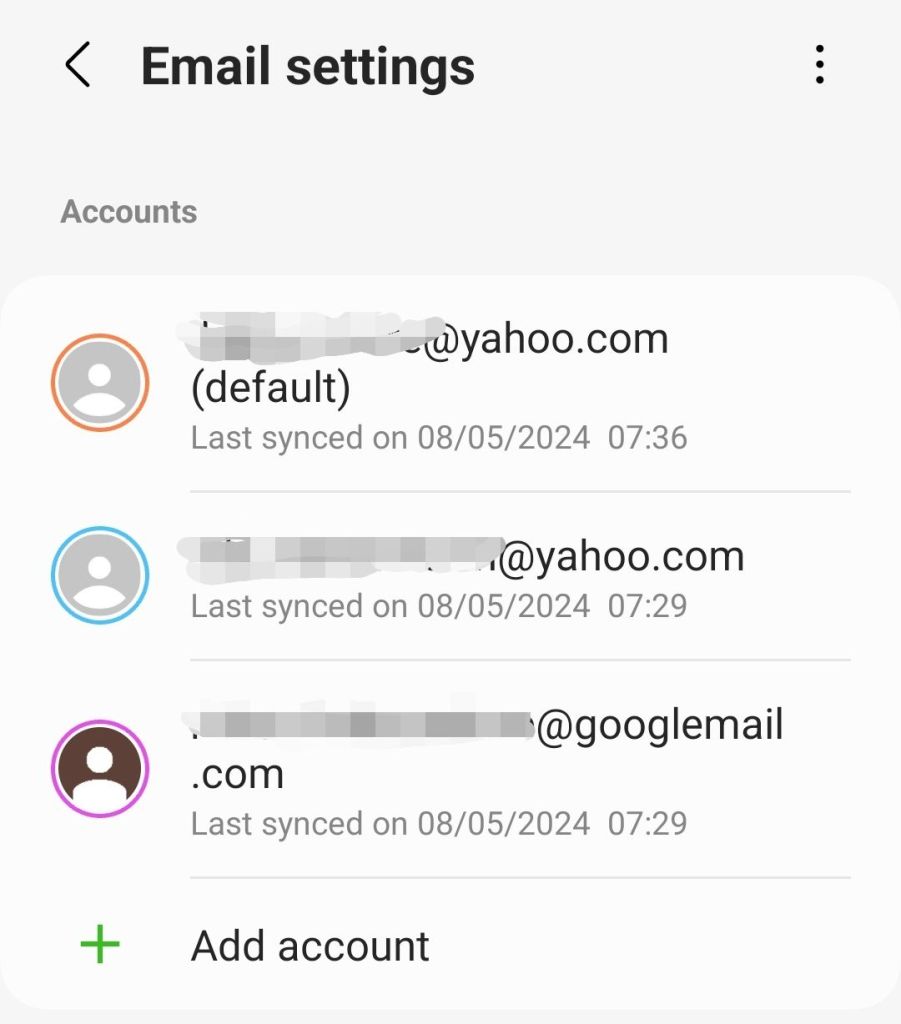
Update 8/5/2024: It looks like mail is syncing OK based on the last synced dates shown:
Last synced
(To get to this go into Samsung Email, click the waffle top left > cog top right)
While I can see new emails when opening the Samsung Email App, (a) I don’t always see an envelope notification when new emails arrive and (b) the “Syncing emails…” notification still appears and remains (until swiping) after restarting my phone so it looks like there is still a Samsung issue that needs fixing.
I recently had a baffling experience in Google Colab where the number of records in a dataframe appearing with a non-null value for a particular field (“Outcome”) suddenly dropped.
I checked the raw source data in Excel and, filtering on the “Outcome” column, the number of Excel ‘blanks’ was lower than the number of records showing null for “Outcome” in the dataframe.
Trawling through the specific records that showed a null in the dataframe, it turned out that some of these were in fact not blank in Excel but rather the actual string “None”.
This had always been the case but somehow suddenly these “None” cell values were being converted to Python nulls (confusingly, these are displayed as ‘None’ or ‘NaN’ in Colab) in the dataframe records.
The dataframe was loaded from Excel using the pandas.read_excel method.
So how do we get “None” strings to appear as “None” strings in the dataframe rather than Python ‘None’ nulls?
It turns out that by default the read_excel method changes certain Excel values to null as per its default na_values parameter.
To get the “None” values read in as “None” rather than null one has to specify keep_na_values as False; if we want empty strings to still be read in as nulls, however, we also need to tell the method this by setting na_values to “” (an empty string) e.g.
This and further subtleties (e.g. Excel displaying in its user interface a value different to what is in fact stored) is described in this Stackoverflow post.
In summary, another unexpected change in Google Colab Python code behaviour. With the help of the API documentation we can explain and work around it, though why the behaviour suddenly changed (previously ‘None’ strings in Excel were read into dataframes as the same, rather than converted to nulls) I have no idea!
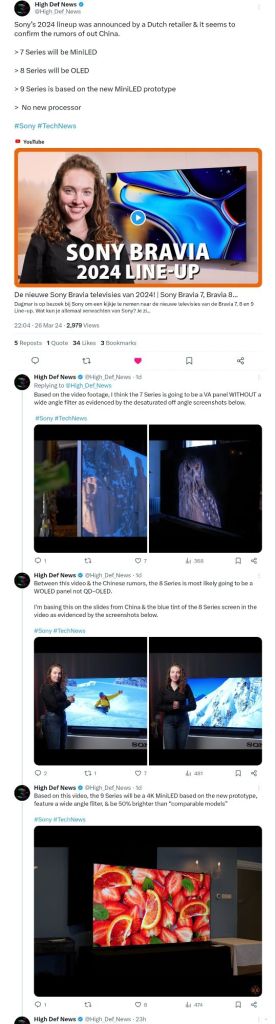
A Dutch Retailer, Expert Nederland, has stolen a march on the tech TV reviewers and shocked the TV review world by releasing technical details of the new-for-2024 Sony Bravia TV models.
It looks like there has been some controversy around this decision however, with their video getting taken down a few hours later in mysterious circumstances.
You can check out the High Def News Twitter (X) post for details.
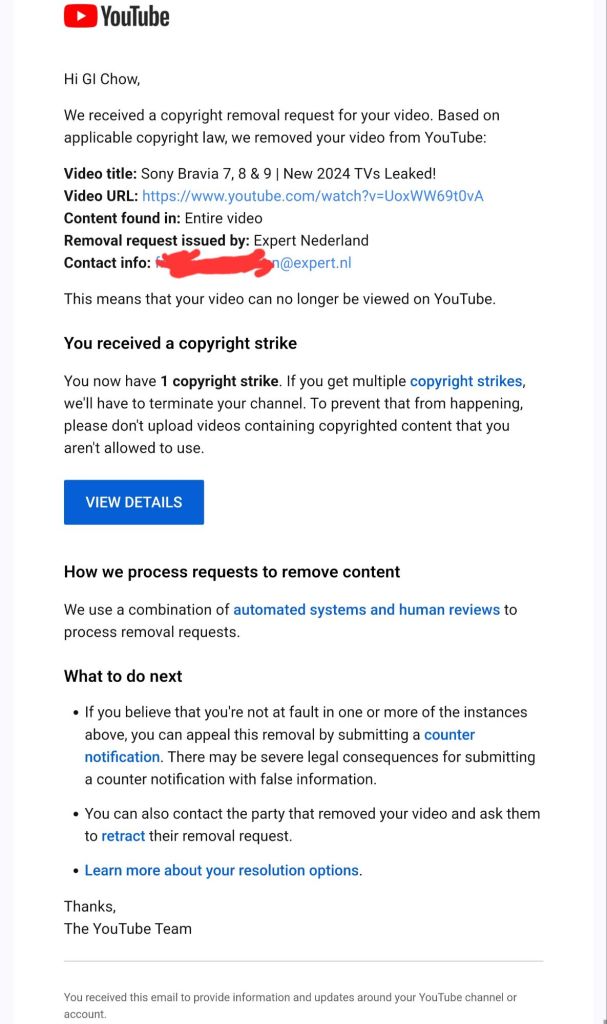
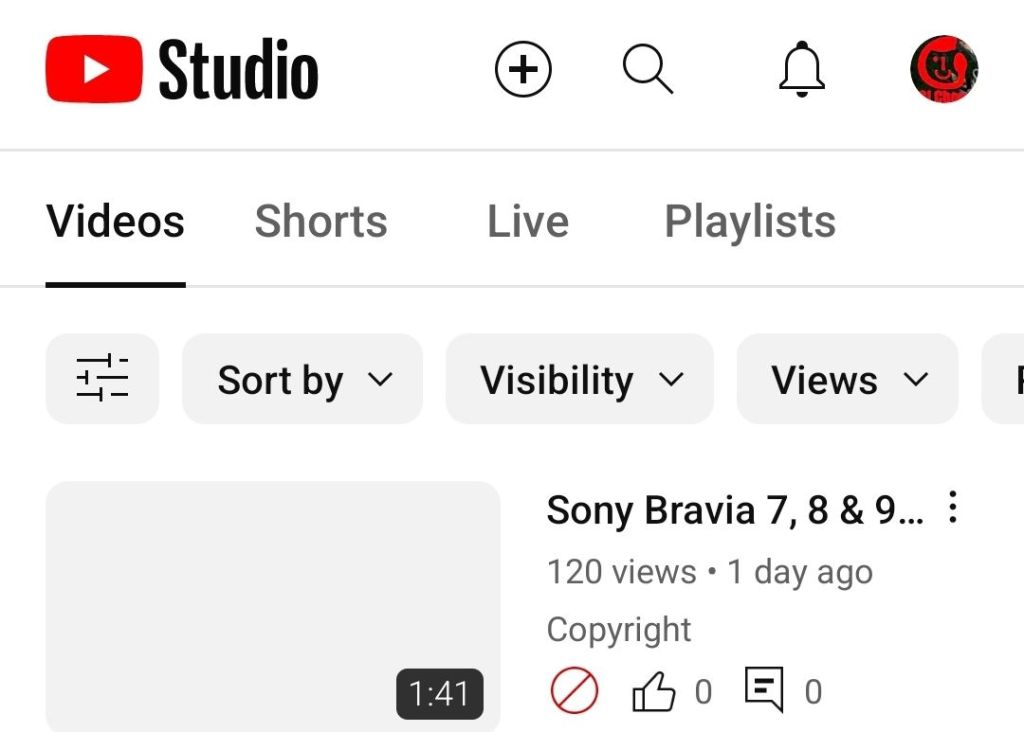
I created a short video summarising the main technical features and including (credited) footage of the feature-explainer graphics, with screenshots of the High Def News post, however almost immediately got served with this notice by YouTube:
In my book, my video fell under the doctrine of fair use and YouTube provides some guidelines:
1) the content in the materials employed in the video was substantially transformed with educational / review / news commentary
2) the video is nonprofit
3) the video uses material from factual works and is akin to news reporting
4) the video gives credit for the materials used in the video with redirection to the original content in the video description
5) the video used no sound from the original video or footage of the actors. In fact, ironically enough, the original video itself included footage from a Scarlett Johansson movie – presumably to illustrate the “filmmaker intent” and “includes Sony Pictures expertise” message.
Regardless of arguments about whether it was or wasn’t fair use, I’d have happily had a conversation with the original content creator about what they objected to.
The strike came before any such discussion could be had. My video was up for all of 8 hours before being taken down.
Sony Bravia 7, 8, 9 – nothing to see here!
Typically, content like mine is good for the original content creator with redirection to their video and good for the manufacturer – there’s no such thing as bad publicity right? And, of course, good for us consumers – informing the very people spending their hard-earned dosh!
So, what follows is the original script for my taken down video:
A Dutch Retailer Expert Nederland has stolen a march on the tech TV reviewers and shocked the TV review world by releasing technical details of the new–for-2024 Sony Bravia TV models.
Here’s what they’ve said, together with some speculation from High Def News (myvideo included screenshots of the High Def News X post referred to above).
The Sony bravia 7 will be a mini led with much smaller leds for precise image control in 65, 75 and 85 inch sizes.
The XR back-light master drive minimises blooming effects and Zoom 3 audio improves voice intelligibility in scenes with background noise.
The Bravia 8 uses OLED technology, like last year’s flagship A95L and comes in 55, 65 and 77 inch sizes with a contrast booster and panel temperature monitor to reduce the risk of screen burn. With acoustic surface plus audio, sound is created by vibrating the screen for more accurate sound positioning plus a sub and tweeters provide for a more natural response.
Sony’s top TV model for 2024 is the Bravia 9 which abandons oled and uses mini led with even more dimming zones. It’s a claimed 50% brighter, coming in 75 and 85 inch sizes. X-wide-angle and X-anti-reflection technologies improve viewing angles off centre while acoustic multi audio plus upgrades sound and surround effects further.
All 2024 Sony Bravia models have the XR processor at their heart, now in its 4th generation and use Sony Pictures Entertainment expertise to focus on the things us humans perceive, so prioritising the main characters on screen over the background, for example. There’s also a new “Calibrated” mode which removes image processing so you see closer to what the filmmaker intended.
So, do any of these features convince you to get a new Sony Bravia in 2024?
If you got value please subscribe!
So, there you have it! Hope it helps, and yeah if you got value.. you know what to do 😉
Update 23/4 Expert.NL kindly removed the copyright strike against my channnel and asked that I remove the video from live.
Surprisingly this was not on the Depop YouTube channel so thanks to Shazam for finding it.
The music has a somewhat sinister but catchy Electronic Dance Music feel with ethnic instrument sounds and lyrics in a non-English language (with English words like ‘supersonic’ and ‘peace out’) that I presume is Hindi or a dialect given the artist is from Mumbai.
The throat clearing near the start gives a live or less highly produced fresh feel and the musical scale conveys an edginess to the brand, which is in the ‘circular’ recycled fashion sector, and invites a more diverse audience than some of its competitors.



 GI Chow